
You can give our team access to manage your Google Business Profile (the panel that appears on Google Search and Maps) without sharing your password. Once we’re added, we can update your hours, services, photos, posts, and help improve your local visibility for you.
We’ll use the following details:
- Group name: Onboarding
- Business group number: 5286698375
Before you begin
Make sure:
- You’re signed in to the Google account that owns your Business Profile
- You know which business/location you want us to manage
- You’re on a computer or laptop if possible (it’s easier than on a phone)
Required
You must be an Owner of the Business Profile to invite us.
Managers cannot add new managers.
Step 1: Sign in to your Google Business Profile
- Open a browser and go to google.com.
- Click Sign in in the top‑right corner (if you’re not already signed in).
- Log in with the email you used to set up your business on Google.
Tip: If you’re not sure which email that is, try searching your inbox for “Google Business Profile” or “Google My Business” from past emails.
Step 2: Open your Business Profile in Google Search
- While signed in, go to google.com again.
- In the search bar, type your business name.
- You should see a management panel for your business with options like “Edit profile,” “Read reviews,” or “Promote.”
If you don’t see this panel, you might be in the wrong Google account. Try another email if you have more than one.
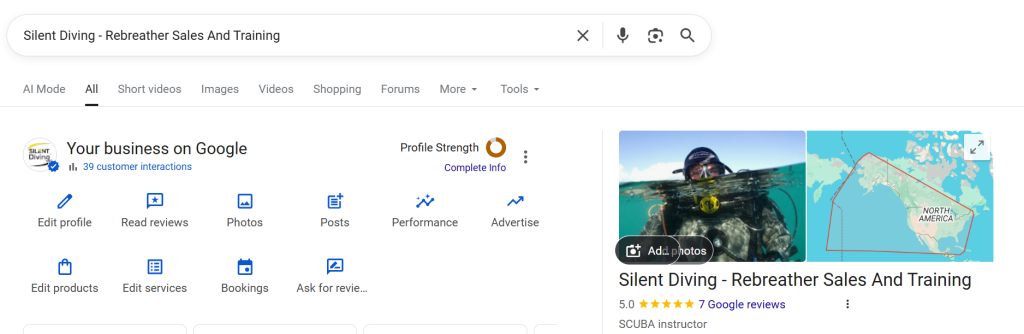
Step 3: Go to Business Profile settings
- In the management panel, look for the three vertical dots (⋮) near the top.
- Click the three dots.
- Click Business Profile settings.
This opens the main settings for your Business Profile.
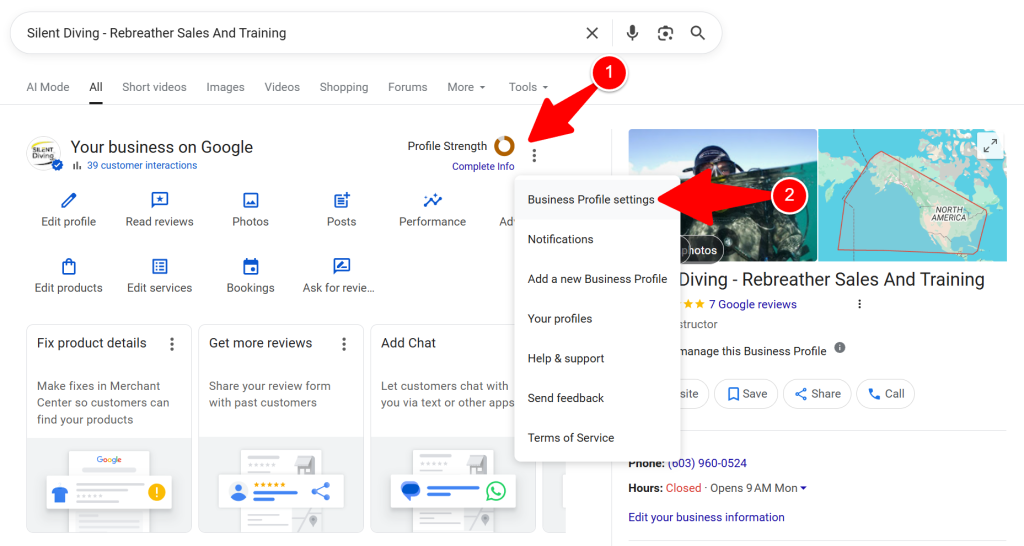
Step 4: Open “People and access” (Users/Managers)
- In the Business Profile settings, look for People and access, Managers, or Users (wording can vary slightly).
- Click that option.
- You’ll now see a list of people who currently have access to your Business Profile, along with their roles.
You should see yourself listed as Primary owner or Owner.
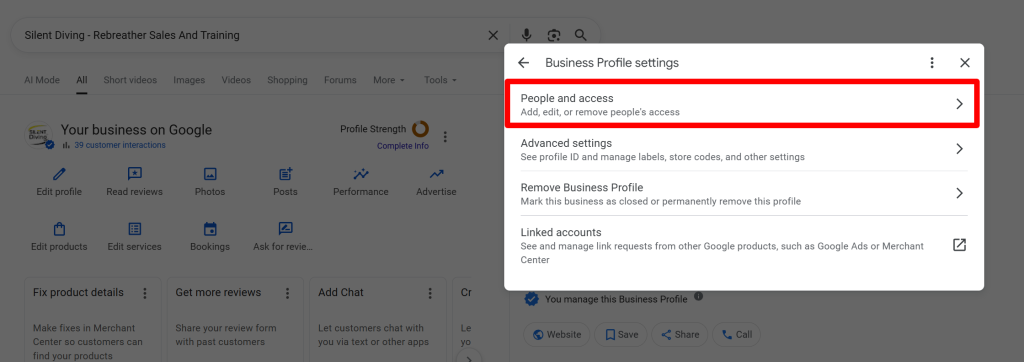
Step 5: Start adding our group
- On the People and access/Users screen, find the button to add someone new. This might appear as:
- Add,
- Invite new users, or
- A plus (+) icon.
- Click that button.
- A window will open asking for an email, name, or ID to invite.
Even though the field looks like it’s only for email addresses, Google also allows adding a group/location ID there.
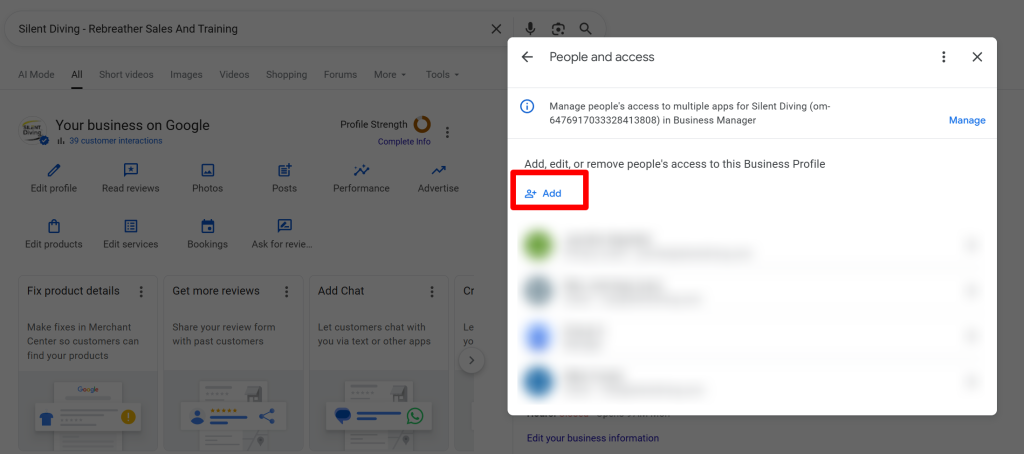
Step 6: Enter our business group number
- In the invite field, carefully type this number: 5286698375
- Wait a moment. Google should recognize this number and show the group name Onboarding.
- Click or select Onboarding from the suggestions.
If nothing appears:
- Double‑check that you entered the number correctly.
- Make sure there are no spaces before or after the number.
- If it still doesn’t work, take a screenshot and email it to us so we can help.
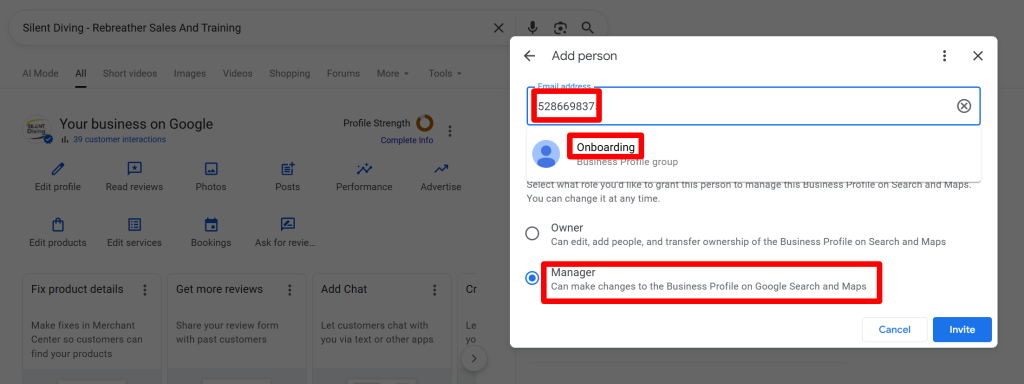
Step 7: Choose our role
- Below the field, you’ll see a dropdown menu to choose a role.
- Select Manager.
This gives us the access we need to manage your profile, while you remain the owner at all times.
Step 8: Send the invitation
- Review that:
- The group says Onboarding
- The role is set to Manager
- Click Invite.
You’re done! 🎉
Our team will receive the invitation, accept it on our side, and then we can begin managing and optimizing your Google Business Profile for you.
If you have more than one location
If you have multiple locations under the same Google account, repeat these steps for each location you want us to manage:
- Switch to the next location in your Business Profile.
- Go to Business Profile settings → People and access/Users.
- Click Add/Invite new users.
- Enter 5286698375 and select Onboarding.
- Set the role to Manager.
- Click Invite.
If you’re not sure which locations we should manage, simply add us to your main location and let us know—we’ll advise you from there.
Troubleshooting and common questions
I don’t see my business when I search on Google.
You might be logged into the wrong Google account, or your Business Profile may not be verified yet. Try a different email account or send us a screenshot and we’ll help you locate it.
Can you take over ownership of my profile?
No. You stay the primary owner of your Business Profile. We only need Manager access so we can update your information and support your local SEO.
Can I remove your access later?
Yes. At any time, you can go back to People and access/Users, click on our Onboarding group, and remove our access.
Can I just give you my Google password instead?
Please don’t. Sharing passwords is risky and can create problems later. Adding our Onboarding group as a manager is the safest and cleanest way to work together.